


Robz Play
Download

Made for GTA VIFree and open sourceWindows 10 and 11

30 FPS on the PS5.
60 FPS on your PC.

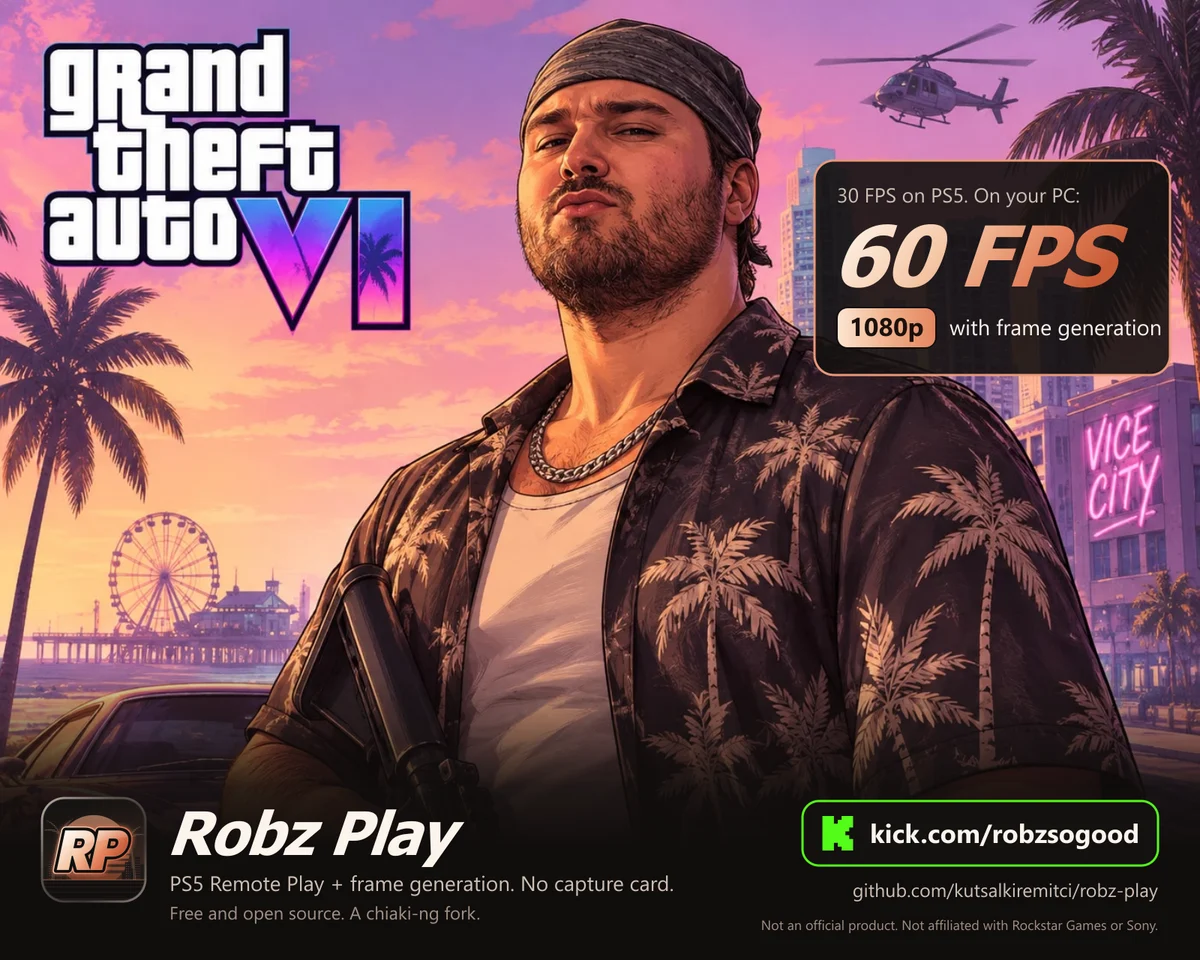
Robz Play connects to your PS5 over your home network with Remote Play and shows GTA VI, which runs at 30 FPS on the PS5, on your PC at 1080p with 60 FPS smoothness. No capture card needed.

The download link always gives you the latest version. Earlier versions and change notes: GitHub releases.

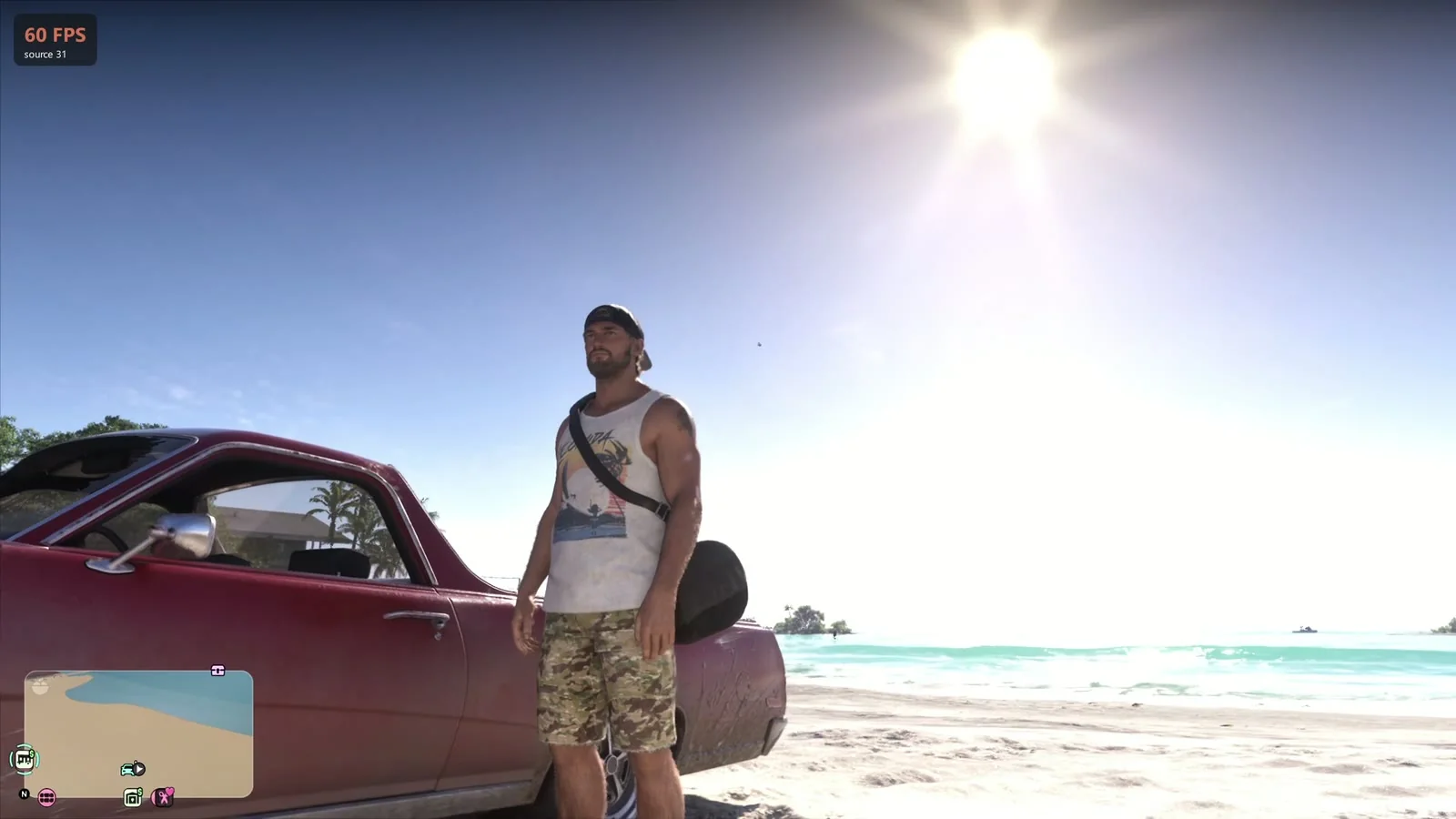
GTA VI with Robz Play: a character standing next to a red car on a beach; the counter at the top left shows 60 FPS and source 31
GTA VI with Robz Play. The counter at the top left shows the frame rate on screen (60 FPS) and the source coming from the console (about 30).
  • 1080p · 60 FPSPS5 Remote Play stream
  • 30 → 60 FPSYour graphics card draws the frames in between
  • No capture cardA PS5, a PC and your home network are enough
  • English and TurkishThe app opens in English; Turkish is one click away
See the difference

30 FPS and 60 FPS side by side

The same GTA VI recording: on the left, the picture reduced to 30 FPS; on the right, the 60 FPS that Robz Play puts on screen. The difference jumps out when the camera turns and when you drive.

Animation: on the left, labelled PS Remote Play (simulated), 30 FPS; on the right, labelled Robz Play, 60 FPS; a pickup truck turning on a beach and kicking up dust
The left side is illustrative: it is the same recording reduced to 30 FPS. The recording was taken from the Robz Play window with OBS; the animation plays at its real speed of 60 FPS.
PS Remote Play compared with Robz Play
PS Remote Playat its 720p · 30 FPS settingRobz Play
Frame rate you see in GTA VI30 FPS60 FPS
Resolution720p1080p
Frame generationNoneYes, on your graphics card
Source codeClosedOpen (AGPL-3.0)

To be fair: the official PS Remote Play app can also be set to 1080p on the PS5 and stream at 60 FPS. But it does not generate frames; GTA VI runs at 30 FPS, so the motion you see is still 30 FPS. What makes the difference is that Robz Play generates the frames in between.

Before you start

What do you need?

No extra hardware. Your console, your PC and the home network they share are enough.

PlayStation 5

A PS4 works too. Remote Play must be enabled on the console (shown in the setup steps).

Windows 10 or 11

A 64-bit PC. A 60 Hz screen for 60 FPS, a 120 Hz or faster screen for 120 FPS.

A dedicated graphics card with Vulkan

NVIDIA GTX/RTX, AMD Radeon RX or Intel Arc. Your graphics card does the frame generation; it is not DLSS and not tied to NVIDIA.

The same home network

The PS5 and the PC must be on the same network. Connecting both to the router with a cable gives the steadiest picture.

A PlayStation account

Your PSN account is found once, when you link the console to the app: by signing in in the browser or by your online ID. If your console is already linked in chiaki-ng, you can skip even that.

Not needed

A capture card, an HDMI splitter or a second device. Integrated graphics built into the processor are not enough, though: one frame takes seconds.

Is your graphics card fast enough?

It needs to produce an in-between frame in under about 10 milliseconds.

Graphics cardWhat to expectStatus
Integrated graphics (Intel UHD, AMD Radeon Graphics)Does not work: one frame takes secondsMeasured AMD integrated: ~2.7 s per frame
Entry-level dedicated card (GTX 1650 class)60 FPS may be possible with "Fast" motion detailEstimate not tested
Mid-range (RTX 3060, RX 6600 XT class and up)60 FPS with "Balanced"Estimate not tested
RTX 407060 FPS with "Balanced": ~5-10 ms per frame. 120 FPS works, experimentallyMeasured

So far it has only really been tested on an RTX 4070; the other rows are estimates and will be updated as more cards are tried. If your card struggles, set Motion detail to "Fast".

Step by step

From download to your first game

The first four steps are preparation; the rest happen in the app. The screenshots were taken from Robz Play 0.4.1, with the console's address and ID hidden by streamer mode.

Preparation

  1. Download the installer

    RobzPlay-Setup.exe is always the latest version. It is free; you do not need an account or to register to download it.

    RobzPlay-Setup.exe
  2. Get past the Windows warning

    The installer is not signed yet, so on first run Windows may show "Windows protected your PC". Click this first, then that:

    1. More info
    2. Run anyway
  3. Install and open

    Finish the installation; it does not ask for administrator rights. Robz Play is installed to %LOCALAPPDATA%\Programs\Robz Play. Open it from the Robz Play shortcut on your desktop or in the Start menu.

  4. Prepare the PS5

    The order matters: the users first, then Remote Play.

    1) Add a second, empty user; an empty game profile is enough. With a single user, the PS5 can pick that user by itself after you press Play and throw the connection back to its home screen. With two users it asks who plays once connected: choose the second profile, not your main one. With a controller connected to the PC, the main profile works too.

    1. Profile icon
    2. Switch User
    3. Add User

    2) Remove the login passcode: if your profile has a PS5 login passcode, remove it; it can cause connection problems.

    3) Turn on Remote Play on every profile:

    1. Settings
    2. System
    3. Remote Play
    4. Enable Remote Play

    To connect while the console is in rest mode as well, turn on both options here:

    1. Settings
    2. System
    3. Power Saving
    4. Features Available in Rest Mode

In Robz Play

  1. First launch: your console shows up by itself

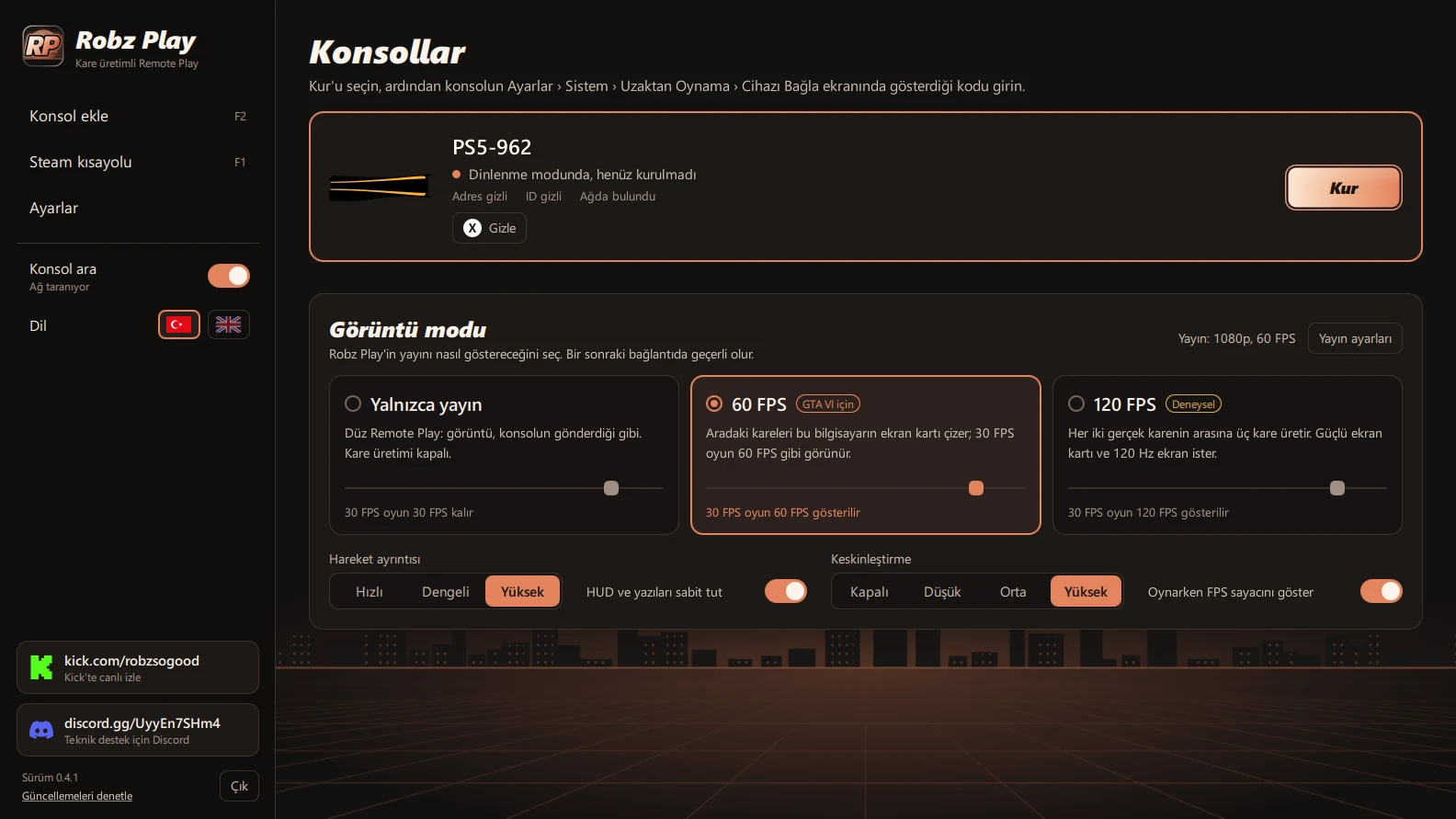
    Robz Play opens in English; for Turkish, click the Turkish flag next to Language in the sidebar. If the PS5 and the PC are on the same network, your console appears at the top of the home screen by itself. In the middle is the Picture mode section, where you choose how the game is shown.

    If chiaki-ng is installed on your PC, Robz Play takes over its settings and registered consoles on first launch; if your console is already linked, skip step 6.

    Robz Play home screen: a menu with Kick and Discord links on the left; the PS5 found on the network with its Set up button at the top; the Picture mode section with Stream only, 60 FPS and 120 FPS in the middle
    The home screen. The console card reads "Adres gizli" and "ID gizli" (address and ID hidden): streamer mode was on when the screenshot was taken.
  2. Link your console (once)

    Press Set up (Kur) on your console's card. The Register Console screen that opens goes in four steps. Next to each step it says what the step is for and what to do on the console; the Back and Continue buttons are under the form.

    1. Console: PS5 is chosen and the address was found on your network. Press Continue.
    2. Account: there are two ways. If you signed in before, it says "Account ready" and the step is done.
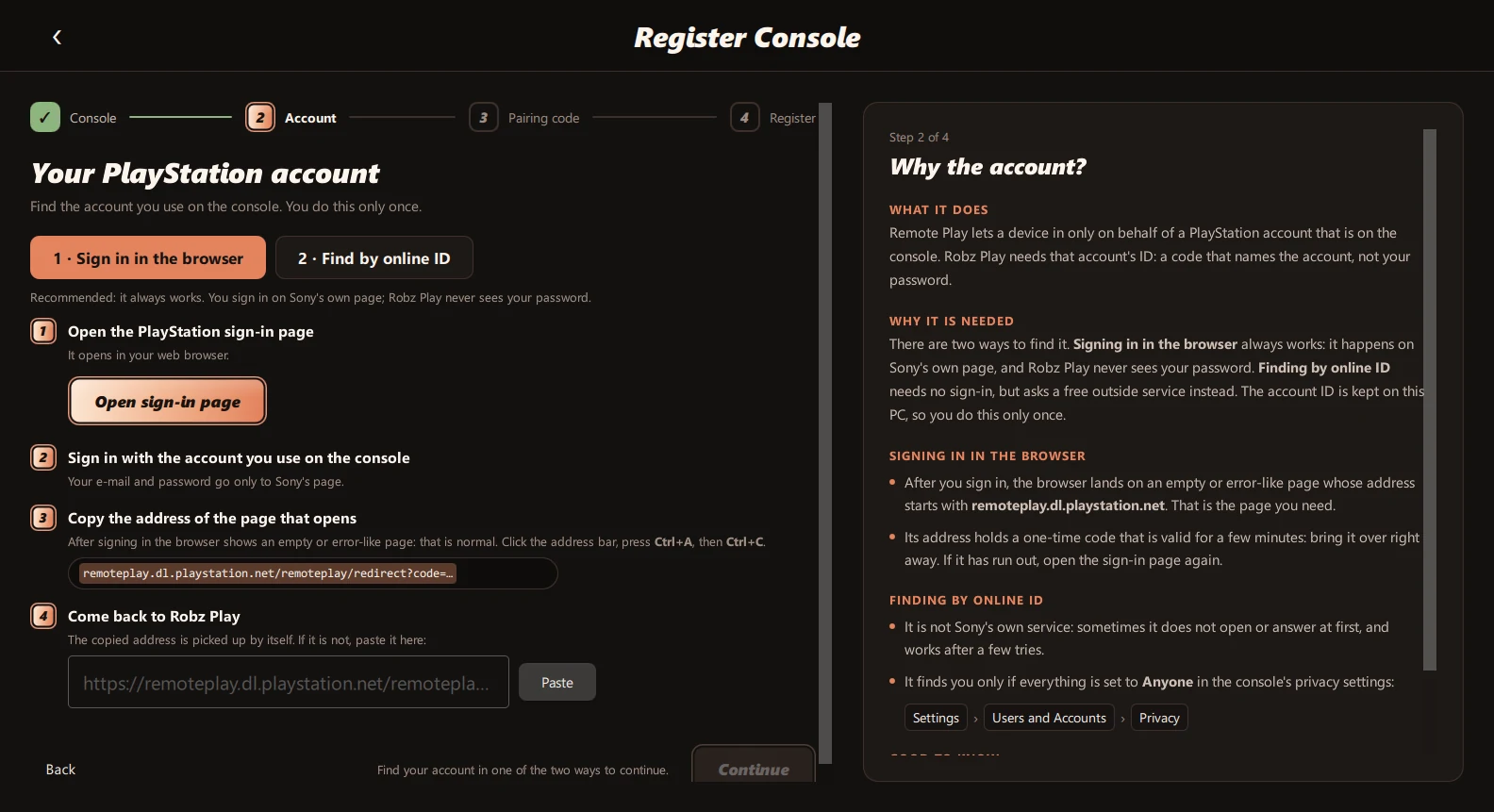
      • 1 · Sign in in the browser (recommended, always works): press Open sign-in page and sign in with the account you use on the console. Afterwards the browser shows an empty or error-like page; that is normal. Click the address bar, press Ctrl+A and Ctrl+C, and come back to Robz Play: it picks the address up by itself, or paste it into the box. The code in the address is valid for a few minutes.
      • 2 · Find by online ID (no sign-in): type your PSN user name and press Find. For it to find you, set everything to Anyone in Settings › Users and Accounts › Privacy on the PS5. This lookup is not Sony's: sometimes it does not open or answer at first, and works after a few tries.
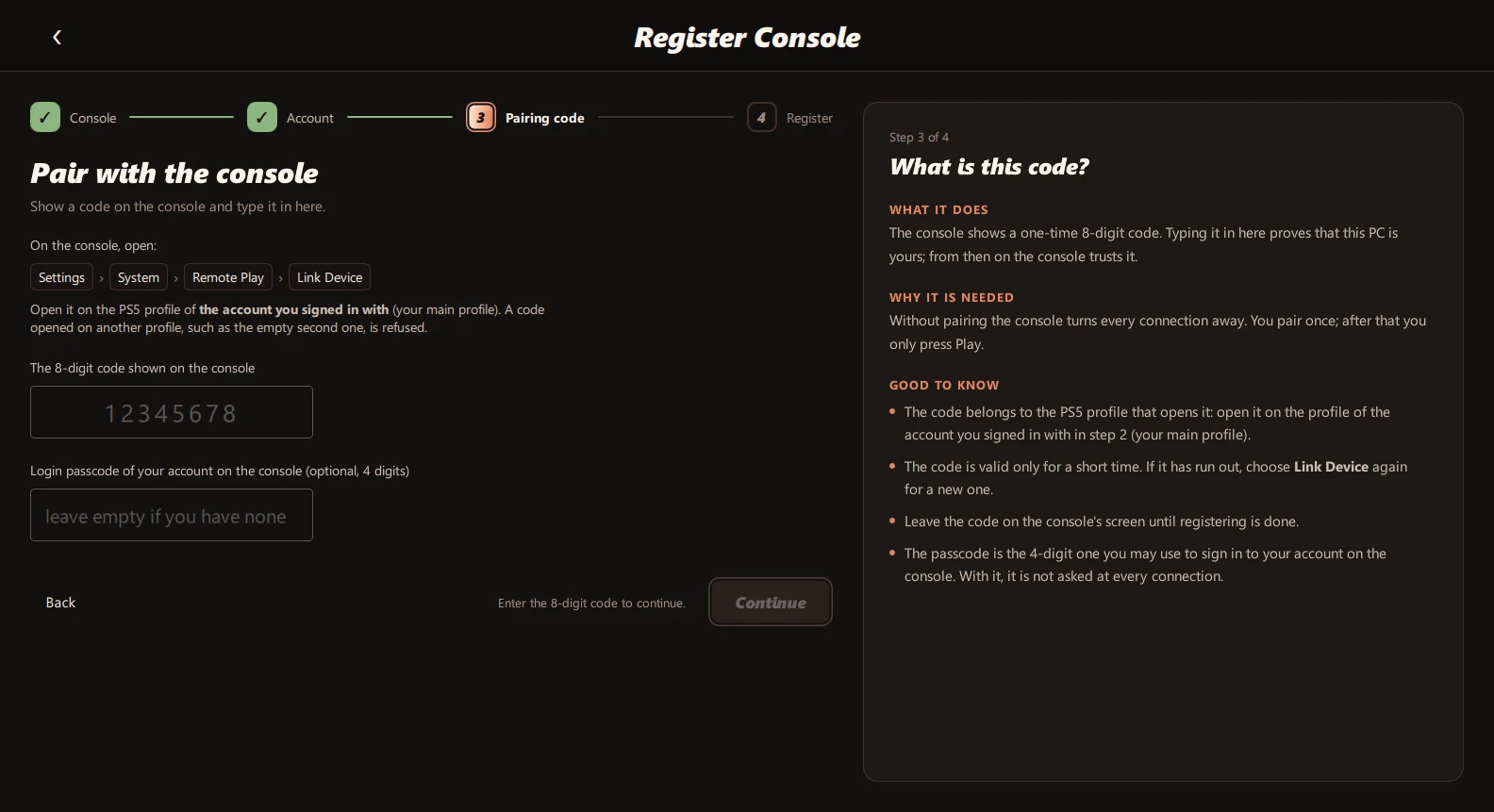
    3. Pairing code: on the PS5, choose Settings › System › Remote Play › Link Device and type in the 8-digit code that appears. Get the code while the PS5 is on the profile of the account you signed in with in step 2 (your main profile): a code from the empty second profile fails with "Invalid PSN ID".
    4. Register: check the summary and press Register console. When it says "Console registered", press Done.
    The card of the console found on the network: in rest mode, not set up yet; the Set up button on the right
    Register Console, step 2 Account: the two ways; the four steps of Sign in in the browser (open the sign-in page, sign in, copy the address, come back and paste); on the right both ways explained and where the privacy settings are
    Step 2: your PlayStation account, one of two ways. The right side explains both and what to watch out for.
    Register Console, step 3 Pairing code: the menu path on the PS5, Settings, System, Remote Play, Link Device; the 8-digit code field; on the right what the code is
    Step 3: the code from the PS5. Streamer mode was on for these screenshots.
  3. Choose a picture mode

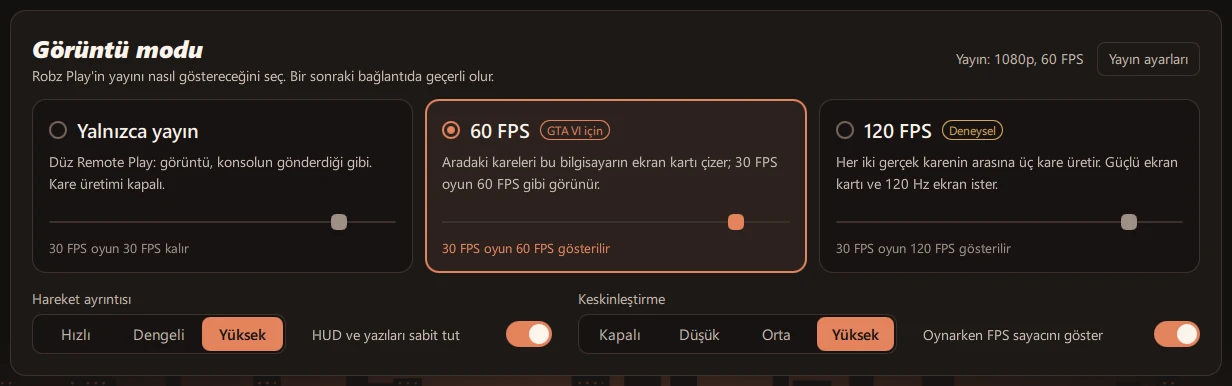
    For GTA VI, choose 60 FPS; it is the default. If you do not want frame generation, choose Stream only; if you have a powerful card and a 120 Hz screen, try the experimental 120 FPS. The mode takes effect on the next connection. Motion detail, Keep HUD and text steady, Sharpening and the FPS counter are right below it.

    Picture mode section: 60 FPS (For GTA VI) selected; below it Motion detail High, Keep HUD and text steady on, Sharpening High, FPS counter on
  4. Play

    Once the console is registered, its card shows a Play button. Press it and Robz Play connects to the PS5; if the rest mode settings from step 4 are on, a sleeping console is woken up too. When the connection is made, the game appears.

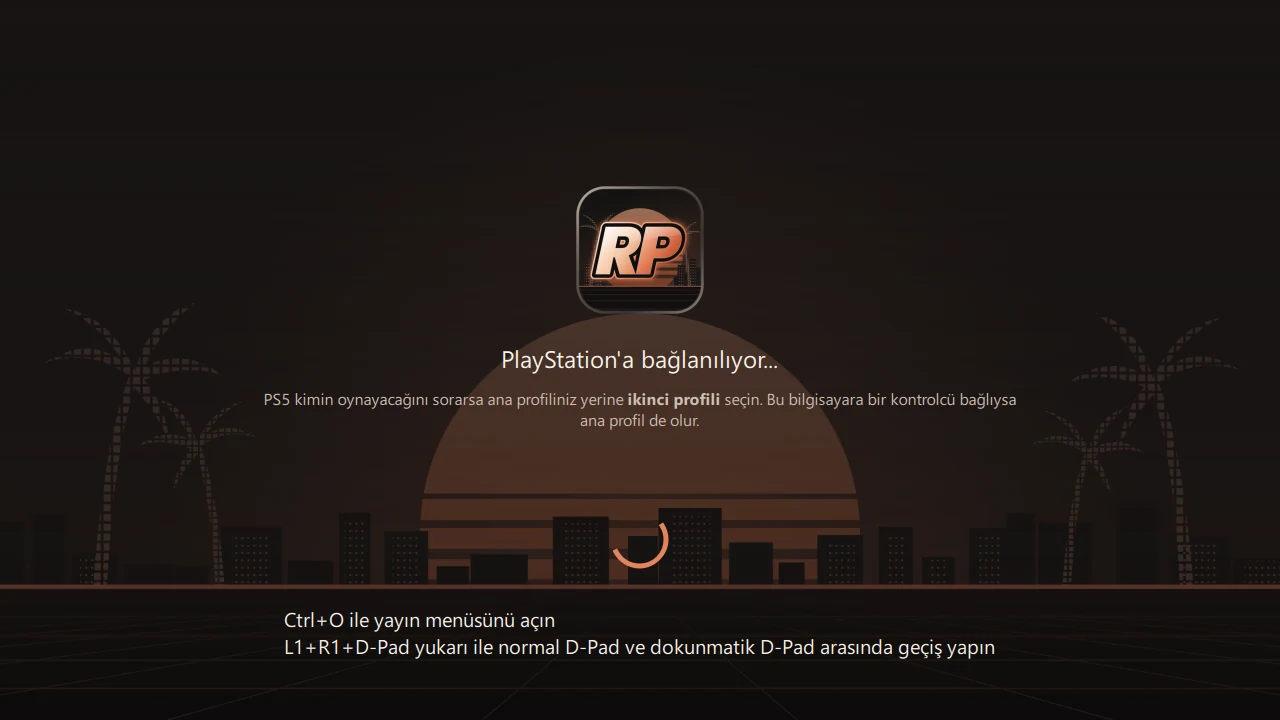
    Connecting screen: the RP logo in the middle with the text Connecting to your PlayStation and a note to choose the second profile if the PS5 asks who plays, before the sunset of the logo; below it a hint about opening the stream menu with Ctrl+O
    The screen you see while connecting.
  5. While playing: the stream menu

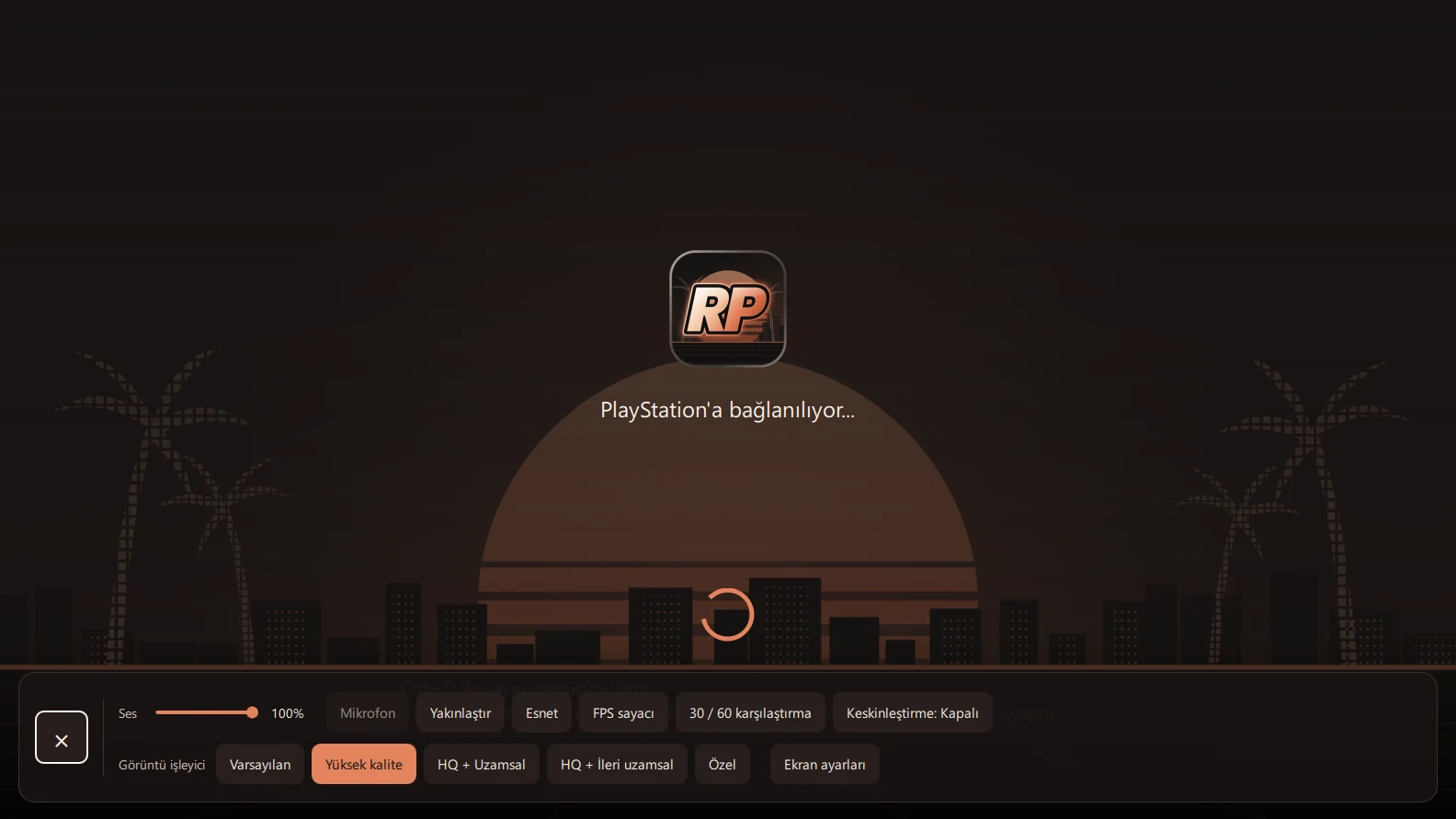
    Ctrl + O opens the stream menu: volume, microphone, zoom, sharpening, the FPS counter and the renderer settings change without leaving the game.

    Stream menu: Volume at 100 percent, Mic, Zoom, Stretch, FPS counter, 30 / 60 comparison, Sharpening: High; renderer presets Default, High Quality, HQ + Spatial, HQ + Adv Spatial, Custom; Display settings
    The stream menu opens at the bottom of the screen.
  6. Settings

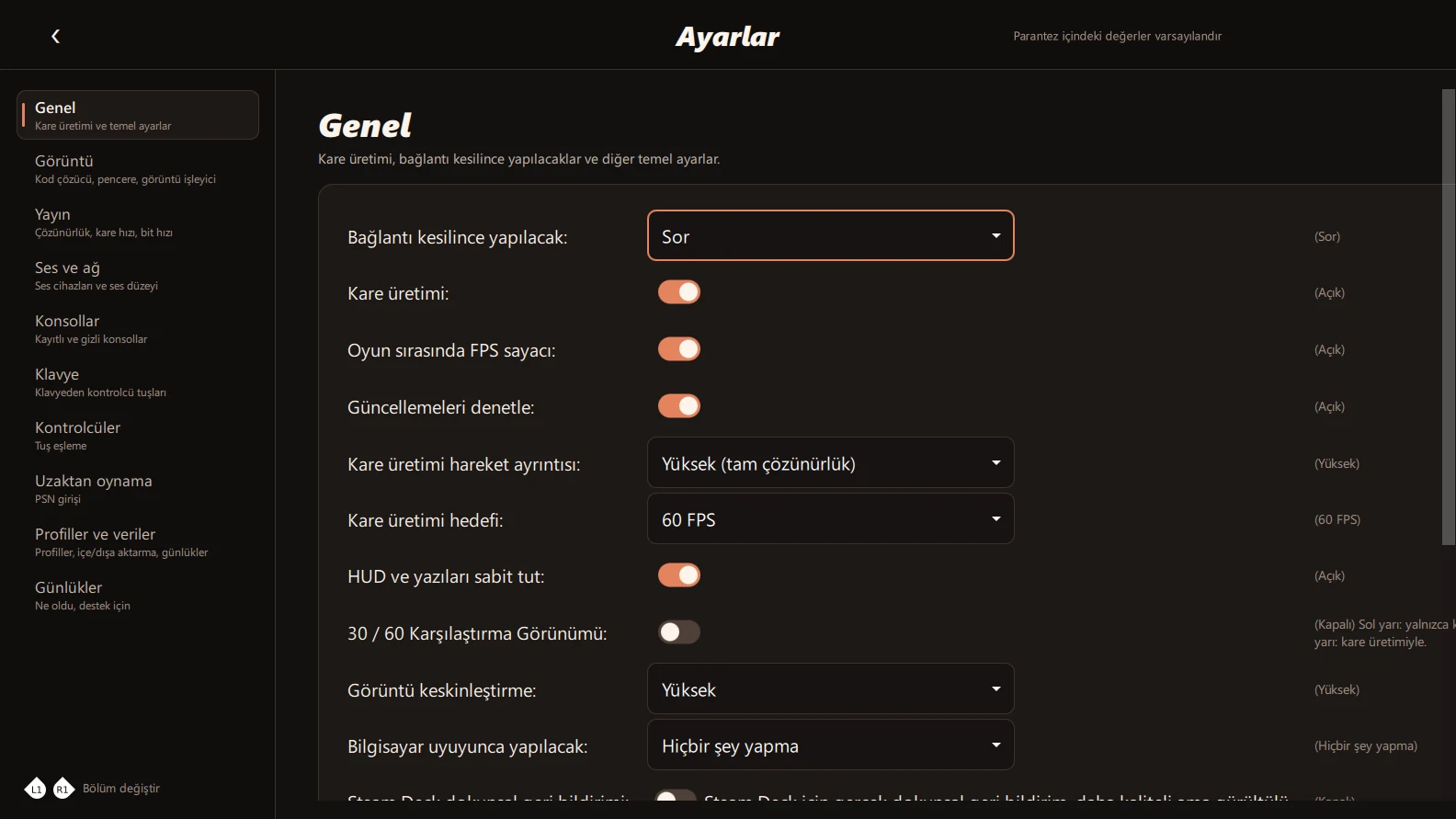
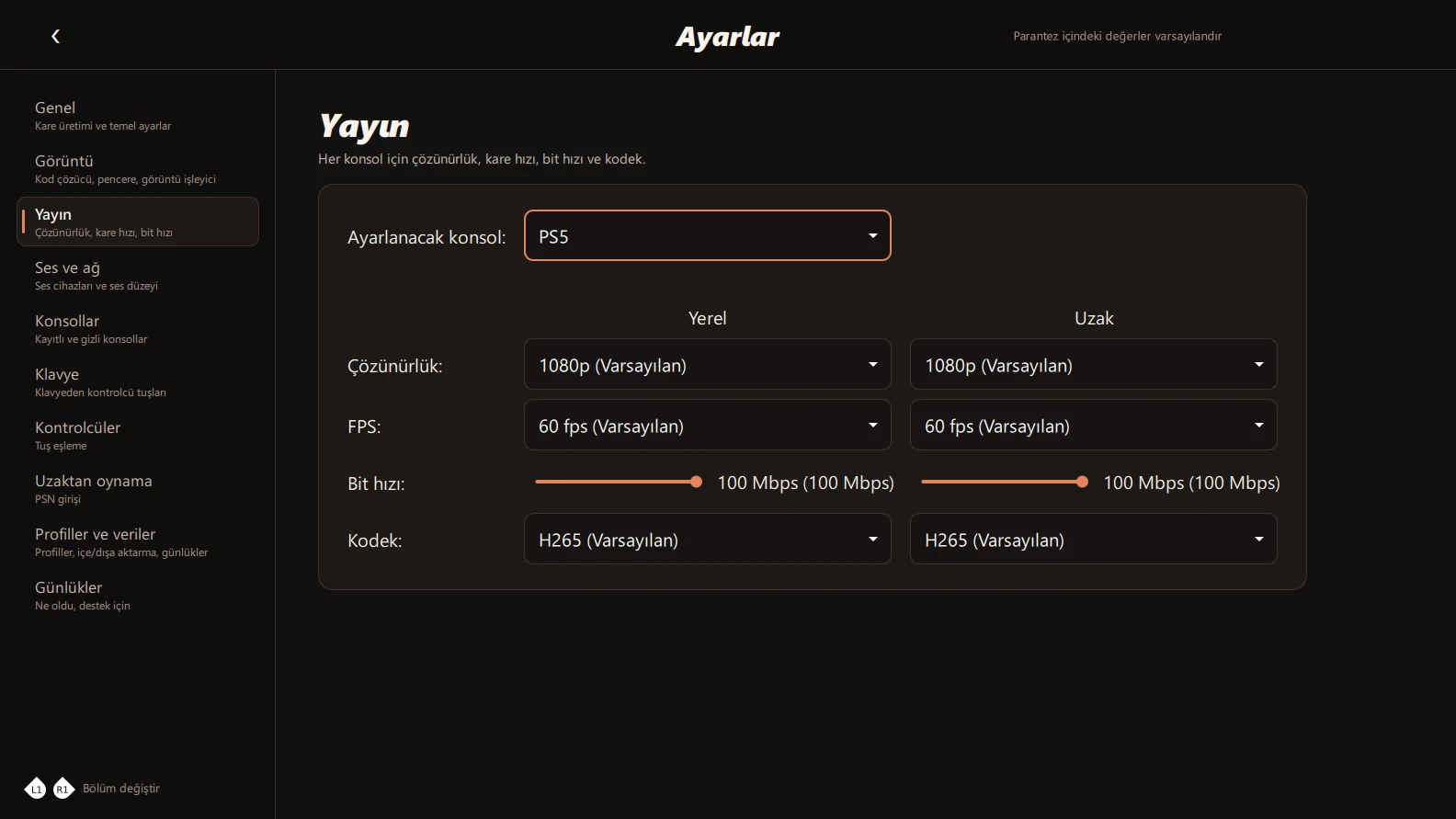
    Settings in the sidebar holds the frame generation, video, stream, audio, console, keyboard and controller settings. Values in brackets are the defaults. On the Stream page you choose resolution, FPS, bitrate and codec separately for connections at home (Local) and away from home (Remote).

    Settings, General page: Action on disconnect Ask, Frame generation on, FPS counter on, Check for updates on, motion detail High (full resolution), frame generation target 60 FPS, Keep HUD and text steady on, 30 / 60 comparison view off, picture sharpening High
    General: frame generation and basic settings.
    Settings, Stream page: 1080p, 60 fps, 100 Mbps and H265 for both Local and Remote
    Stream: 1080p, 60 FPS, 100 Mbps, H265.
In the middle of the home screen

Three picture modes

Frame generation is optional. One click turns it on or off, or changes its target.

Stream only

Plain Remote Play: a 1080p, 60 FPS stream, exactly as the console sends it. Frame generation is off, with no added latency.

What you see in GTA VI at 30 FPS 30 FPS

60 FPS For GTA VI

Your PC's graphics card draws the frames in between; a 30 FPS game looks like 60 FPS. The default and recommended mode.

What you see in GTA VI at 30 FPS 60 FPS

120 FPS Experimental

Generates three frames between every two real ones. Needs a powerful graphics card and a 120 Hz or faster screen.

What you see in GTA VI at 30 FPS 120 FPS

Good to know

  • The mode takes effect on the next connection.
  • In a game that already runs at 60 FPS, "Stream only" and "60 FPS" look the same; the difference shows in games locked to 30 FPS.
  • Sharpening and the FPS counter apply instantly; frame generation settings apply from the next stream.

Why is 120 FPS experimental?

  • It asks more of your graphics card than the 60 FPS mode.
  • Three out of four frames are generated, so artifacts in fast motion are easier to spot.
  • It has only been tested on one system (RTX 4070). If you run into trouble, go back to 60 FPS.
What's inside

Highlights

1080p, 60 FPS Remote Play

Connect to your PS5 over your home network and play from your PC. Works without frame generation too.

30 → 60 FPS

GTA VI and other PS5 and PS4 games locked to 30 FPS, with 60 FPS smoothness.

HUD and text protection

Fixed elements such as the health bar, minimap and subtitles stay in place in generated frames instead of wobbling.

Sharpening

Brings back detail lost to the compressed stream; changes instantly while you play.

FPS counter that shows in OBS

Shows the displayed and the source FPS together. It is drawn into the picture, so it also ends up in recordings.

In-stream menu

Ctrl + O: volume, microphone, zoom, sharpening, FPS counter.

English and Turkish

The app opens in English; the flags on the home screen switch the language.

Coming from chiaki-ng

On first launch it takes over chiaki-ng's settings and registered consoles. chiaki-ng's own settings are left untouched.

All of Remote Play

Built on chiaki-ng: DualSense support, connecting from outside your home over PSN, button mapping, profiles.

New in 0.4.0

A new look New

The new "Sunset" logo and an interface repainted to match: warm coral accents, dark backgrounds, a sunset behind it all.

Step-by-step setup New

Setting up the console and signing in to PSN now go in numbered steps. The account ID can be found two ways; if registering fails, the app says why and what to do.

Logs and factory reset New

Read the logs right inside Settings. "Reset to factory settings" removes everything and opens Robz Play as on its first start.

30 / 60 comparison New

The left half of the screen without frame generation, the right half with Robz Play. See the difference side by side; it shows in OBS recordings too.

Default settings

Robz Play is developed and tested with these settings. Vulkan is the default renderer because the developer's other app, Robz Vision, which reads subtitles from the picture, cannot capture the OpenGL one.

  • Vulkanrenderer
  • H265codec
  • 1080presolution
  • 60 FPSstream
  • 100 Mbpsbitrate
  • 100%volume
  • Highmotion detail
  • Highsharpening
  • OnFPS counter
In plain words

How does it work?

The PS5 still runs the game at 30 FPS. What becomes smoother is the picture you see on your screen.

  1. PS5The game runs at 30 FPS

    The picture is sent over Remote Play as a 1080p, 60 FPS stream; every frame arrives twice.

  2. Home networkIt reaches your PC

    The picture arrives compressed and is decoded with FFmpeg.

  3. Robz PlayAn in-between frame is generated

    Repeated frames are filtered out; the graphics card draws the frame between two real ones.

  4. Your screen60 FPS

    30 real + 30 generated frames per second, evenly spaced.

Where does the in-between frame come from?

  1. Robz Play filters out the copies in the stream and finds the game's 30 real frames.
  2. An AI model running on the graphics card, RIFE v4.6, measures the motion between two consecutive real frames and draws the frame exactly halfway. The model runs with ncnn and Vulkan, which is why it can work on NVIDIA, AMD and Intel cards.
  3. Fixed HUD elements are protected separately, so they do not wobble over the moving background.
  4. If the card cannot keep up with a frame, Robz Play skips generating it; the picture does not freeze.

What it is not

  • It does not speed up the PS5. The game still runs at 30 FPS on the console.
  • It does not reduce latency; it adds a little. To draw the in-between frame it has to wait for the next real frame (about 33 ms at 30 FPS). Fine for single-player games; not suited to competitive ones.
  • It is not HDMI quality. The picture arrives compressed over the network. Sharpening narrows the gap but does not close it.
  • It is not flawless. In very fast motion and fine patterns, generated frames can show artifacts.
  • It is not an official product. It has no ties to Sony, Rockstar Games or Take-Two.
Standing on open source

Technologies used

Robz Play is a modified version of chiaki-ng 1.10.1. All of its source code is on GitHub.

Where people get stuck

FAQ and troubleshooting

If you cannot find the answer here, write on Discord; setup help is free.

Installing and starting

Windows says "Windows protected your PC"

The installer is not signed yet, so Windows may show this warning. Click More info, then Run anyway. A signed installer is on the roadmap.

Robz Play does not open or shows an error

First install the latest version: 0.3.0 fixed a start-up problem on PCs whose Windows user name contains Turkish letters such as ğ, ı or ş. If the problem continues, look at the logs and create the diagnostics file (below).

Where are the logs?

The "Robz Play logs" shortcut in the Start menu ("Robz Play günlükleri" on a Turkish Windows, and up to version 0.4.1) opens the log folder: %APPDATA%\RobzPlay\RobzPlay\log

  • robzplay-acilis.log: written on every launch; the previous launch is kept as robzplay-acilis-onceki.log. If the app crashes, the last line says which file it crashed in.
  • chiaki_session_….log: one log per stream.
Which file should I send when asking for help?

Double-click Tani.bat in the install folder (%LOCALAPPDATA%\Programs\Robz Play). It writes information about your PC, your graphics card and the last launches to robzplay-tani.txt on your desktop. Attach that file when you describe your problem on Discord.

I use chiaki-ng. Do I have to set everything up again?

No. On first launch Robz Play takes over chiaki-ng's settings and registered consoles by itself; you do not need to link the console again. chiaki-ng's own settings are left untouched.

How do I update or uninstall?

From 0.3.0 on, when a new version is out Robz Play lists the changes in a "What's new" window; "Update now" downloads and installs the new version and reopens the app. The app checks by itself at start-up and every few hours; if you do not want to wait, click the "Check for updates" link under the version number at the bottom left. If you are up to date, it says "Robz Play is up to date"; if it cannot reach the internet, it says "Could not check. Is the internet connected?". You can also simply download and run the new RobzPlay-Setup.exe; your settings and registered consoles are kept.

To uninstall, remove Robz Play from the "Installed apps" list in Windows. Your settings stay in the Windows registry.

Connection and picture

After I press "Play", the controller disconnects

If the stream starts but the DualSense does not work in the game, or its connection drops, the reason is that the PS5 has only one user profile. Robz Play uses the same Remote Play connection as chiaki-ng, and with this connection the console needs a second user profile for the remote controller. So the problem does not come from frame generation, but from this behaviour of Remote Play (and chiaki-ng).

The fix:

  1. Add a new user profile (a second account) on the PS5: on the home screen, open the profile icon at the top right (or open the control centre with the PS button), choose Switch User, then Add User.
  2. If your profile has a PS5 login passcode, remove it; it can cause connection problems.
  3. Press Play in Robz Play again. This time the PS5 shows a profile selection screen with two profiles.
  4. Choose the second profile and continue; the controller works. With a controller (DualSense) connected to the PC, the main profile works too.

Important for GTA VI: to play a game bought on your main account while signed in with the second profile, the main account must have Console Sharing and Offline Play turned on for that PS5. On the PS5, signed in with the main account: Settings › Users and Accounts › Other › Console Sharing and Offline Play. It is usually already on for the first account set up on the console.

Menu names may differ slightly between PS5 system software versions. If the connection still drops after these steps, ask on Discord and attach robzplay-tani.txt.

My console does not appear on the home screen

Make sure Remote Play is enabled on the PS5 (Settings › System › Remote Play) and that the PS5 and the PC are on the same network. The Find consoles switch on the left of the home screen must be on. If the console is in rest mode, both options under Settings › System › Power Saving › Features Available in Rest Mode must be on.

The picture stutters or breaks up

Connect the PS5 and the PC to the router with a cable. A wired connection gives the steadiest picture; stutter is more common over Wi-Fi.

My graphics card is struggling

Set Motion detail on the home screen to "Fast". Motion is then measured at a quarter of the picture's resolution, which noticeably lowers the load. When frame generation cannot keep up, Robz Play skips generating frames by itself; the picture does not freeze. If you use 120 FPS, go back to 60 FPS.

Integrated graphics built into the processor are not enough for frame generation; you need a dedicated graphics card with Vulkan. To play without frame generation, choose the "Stream only" mode.

I see artifacts in the generated frames

Motion is estimated from the picture, so generated frames can show artifacts in very fast motion and fine patterns. They are more visible in 120 FPS mode, where three out of four frames are generated. Keep Keep HUD and text steady on. If your card can handle it, set Motion detail to "High": it gives cleaner results, but is about three times heavier on the graphics card.

Is there latency? Can I use it for competitive games?

Frame generation adds a little latency: to draw the in-between frame it waits for the next real frame (about 33 ms at 30 FPS), on top of Remote Play's own latency. Fine for single-player games; not suited to competitive ones. Where latency matters, choose "Stream only".

Can I connect from outside my home?

Yes, Remote Play supports connecting from outside your home with your PSN account (Settings › Remote play › Login to PSN). But the default 100 Mbps is too much for most home upload speeds: lower the bitrate in the Remote column on the Settings › Stream page. On a weak connection, picture quality and latency get worse.

General

Do I need a capture card?

No. The picture comes from the PS5 over the network, with Remote Play.

Is this DLSS? My graphics card is not NVIDIA.

No, it is not DLSS, and it does not use any technology tied to NVIDIA or AMD. Frame generation is done by the open-source RIFE v4.6 model with ncnn and Vulkan; it works on dedicated graphics cards that support Vulkan (NVIDIA GTX/RTX, AMD Radeon RX, Intel Arc). So far it has only been tested on an RTX 4070.

DLSS runs inside the game and takes motion information from the game engine. GTA VI, however, runs on the PS5; only the picture reaches your PC. Robz Play estimates the motion from that picture. That is why it works on any brand of card and with every game you open over Remote Play.

Which games does it work with?

It was designed for GTA VI and developed while playing GTA VI, but it works with every PS5 and PS4 game that Remote Play allows. The biggest difference shows in games locked to 30 FPS; in a game that already runs at 60 FPS, the 60 FPS mode adds nothing.

Can I stream or record with OBS?

Yes. Add the Robz Play window as a game capture source; the generated frames and the FPS counter end up in the recording.

Is HDR supported?

Frame generation has not been tested with an HDR stream yet.

Does it cost anything? Is it an official app?

It is free and open source (AGPL-3.0). It is not an official product: it has no ties to Sony Interactive Entertainment, Rockstar Games or Take-Two Interactive and is not endorsed by them.

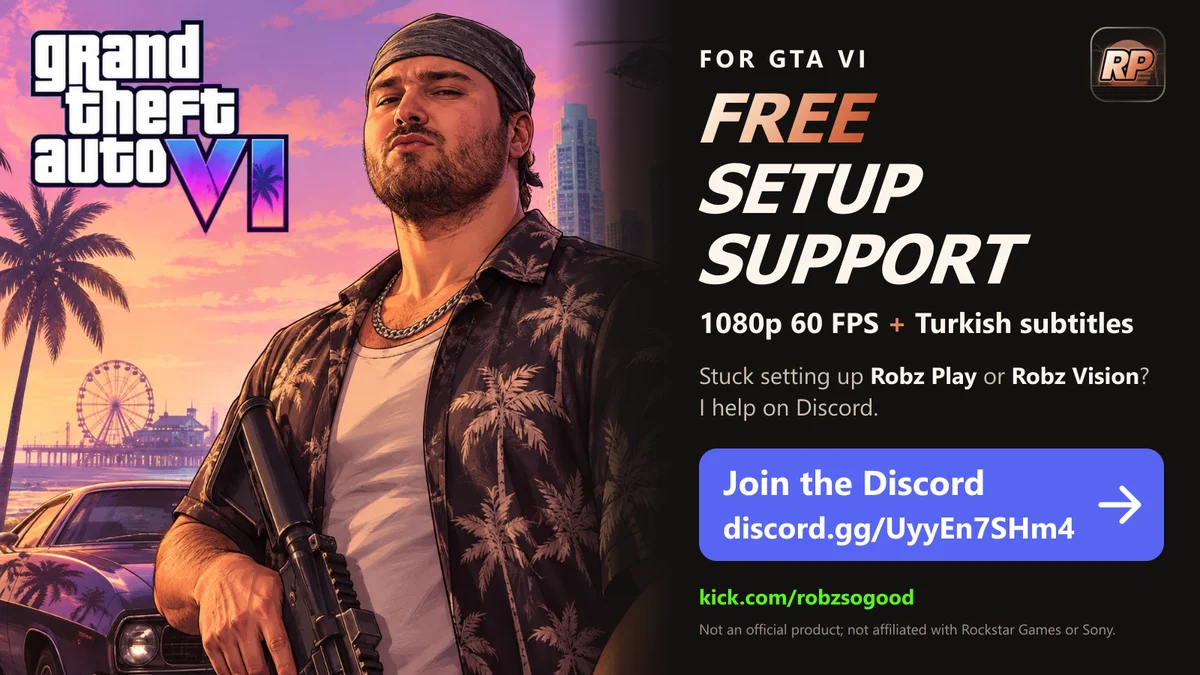
Free setup support banner: for GTA VI, 1080p 60 FPS and Turkish subtitles; help on Discord with setting up Robz Play and Robz Vision; discord.gg/UyyEn7SHm4
Free setup help

Stuck? Come to Discord

If you get stuck installing Robz Play or on the first connection, you can get help on Discord. To solve it quickly:

  1. Double-click Tani.bat in the install folder; robzplay-tani.txt is written to your desktop.
  2. Briefly describe the problem and when it happens.
  3. Attach the file to your message.
discord.gg/UyyEn7SHm4

To report a bug, the issue list on GitHub is open too.

The post that took off

The launch post on X

“GTA VI runs at 30 FPS on PS5. With Robz Play, it plays on your PC at 1080p with 60 FPS smoothness.”

The post announcing Robz Play spread quickly on X and was shared widely. It is written in Turkish; the line above is a translation. The full post and the replies are on X.

Open the post on X
Open and honest

Disclaimer

Robz Play is an open source fork of chiaki-ng. Here is plainly what belongs to whom, what the app does and what it does not do.

An open source fork of chiaki-ng

Robz Play is a fork of chiaki-ng, the open source Remote Play client. All of Remote Play, connecting to the PS5, receiving the picture and sound, controller support and the PSN sign-in, comes from chiaki-ng. On top of it, Robz Play adds frame generation, the Turkish interface, the step-by-step setup screens, the installer and the update notices. The person who develops the app also uses Robz Play regularly with their own PS5.

Not a virus or malware

All of the source code is public on GitHub; every published installer is built from this code, and its SHA-256 value is in the release notes. The app sends no data to the developer, contains no ads or usage statistics, and does not ask for administrator rights when installing. Windows' "Windows protected your PC" warning and the Smart App Control block do not mean the file is harmful; they mean it is not digitally signed yet. Some antivirus programs may also raise false alarms on new, unsigned files.

The PSN sign-in belongs to chiaki-ng

The method of signing in with a PlayStation account was not developed by Robz Play; it is taken over from chiaki-ng as it is. You sign in on Sony's own page, in your own browser; your e-mail address and password never reach Robz Play. The account ID and session keys Sony gives are stored only on this PC and are removed with Reset to factory settings. The "Find by online ID" way comes from chiaki-ng too, and asks a third-party service, psn.flipscreen.games, about your PSN user name.

Where the app connects

Your PS5; Sony's servers, for the PSN sign-in and for connecting from away from home; public STUN servers, to find the network address when connecting from away from home; GitHub, to check for updates; and psn.flipscreen.games, only if you choose the online ID lookup.

Use at your own risk

As stated in sections 15 and 16 of the AGPL-3.0 license, Robz Play is provided "as is", without warranty of any kind, express or implied. To the extent permitted by applicable law, the developer and contributors cannot be held liable for any data loss, hardware or software problems, restrictions that may be applied to a PlayStation Network account, or any other direct or indirect damage arising from the use of the app or the inability to use it.

Unofficial and independent

Robz Play is an unofficial Remote Play client; complying with the PlayStation Network terms of service is the user's responsibility. Robz Play is not made, endorsed or supported by Sony Interactive Entertainment, Rockstar Games, Take-Two Interactive, or the developers of chiaki-ng and Chiaki.

By downloading and using Robz Play, you accept that you use it at your own risk. The binding license text: AGPL-3.0.